Unboxings and Reviews of Android Mini PCs and up to date news from the world of Technology
Showing posts with label tutorials. Show all posts
Monday, October 3, 2016
Tuesday, March 24, 2015
Root method for Zidoo X9 and Mstar MSO9180D1R Android TV Boxes
Many of you are wondering if the Zidoo X9 or other Mstar CPU Android TV Boxes can be rooted.
They can by using the method below. I've tried myself on a Zidoo X9 and it was successful.
Rooting methods and various changes to your devices software can result in unwanted results like bricking your device and rendering it useless.
I AM NOT RESPONSIBLE FOR WHAT HAPPENS TO YOUR DEVICE, PROCEED WITH CAUTION AND WITH YOUR OWN RESPONSIBILITY
They can by using the method below. I've tried myself on a Zidoo X9 and it was successful.
Rooting methods and various changes to your devices software can result in unwanted results like bricking your device and rendering it useless.
I AM NOT RESPONSIBLE FOR WHAT HAPPENS TO YOUR DEVICE, PROCEED WITH CAUTION AND WITH YOUR OWN RESPONSIBILITY
Sunday, September 21, 2014
Download The Stock Firmware For The MXiii 4k Android TV Box
Ετικέτες
amlogic,
android mini pc,
firmware,
tutorials
Wednesday, May 21, 2014
New firmware for Mele A1000G and M9 TV Boxes V.3.1.4
Ετικέτες
allwinner,
android mini pc,
firmware,
news,
tutorials
How to manually update your Mele A1000G android TV Box
This is a guide on how to manually update your Mele A1000G Quad Core TV Box withe latest OFFICIAL Update
For Allwinner A31 models there is a new tool called PhoenixCard that replaces the old LiveSuit used for the previous A10 platform.
There is no need to root your device as it comes prerooted
1. Update method by SD Card (RECOMMENDED)
2. Update method by USB Stick
For Allwinner A31 models there is a new tool called PhoenixCard that replaces the old LiveSuit used for the previous A10 platform.
There is no need to root your device as it comes prerooted
1. Update method by SD Card (RECOMMENDED)
2. Update method by USB Stick
Ετικέτες
allwinner,
android mini pc,
firmware,
tutorials
Wednesday, April 30, 2014
How to fix your MK802 IV Android mini PC's WiFi performance
Over the past year Android TV sticks have gotten more and more powerful,
while prices continue to drop. These days you can get a device that
fits in the palm of your hand, has a quad-core processor, and lets you
run Android apps on a TV for well under $100.
But one problem that plagues many of these little devices is poor WiFi reception. Some models are better than others, but I got so tired of testing Android mini-computers that didn’t work in my office that I recently invested in a WiFi range extender for the house.
Fortunately some device makers have been paying attention and adding features such as external antennae to improve performance. Sometimes there are easy ways to fix models without an external antenna though.
The folks at Rikomagic, for example, noticed that you can dramatically improve WiFi performance on the MK802 IV just by moving the antenna inside the case.
It’s a small Android device with a Rockchip RK3188 ARM Cortex-A9
quad-core processor, 2GB of RAM, 8GB of storage, an HDMI connector, USB
2.0 port, and 2 micro USB ports (one of which is used for power).
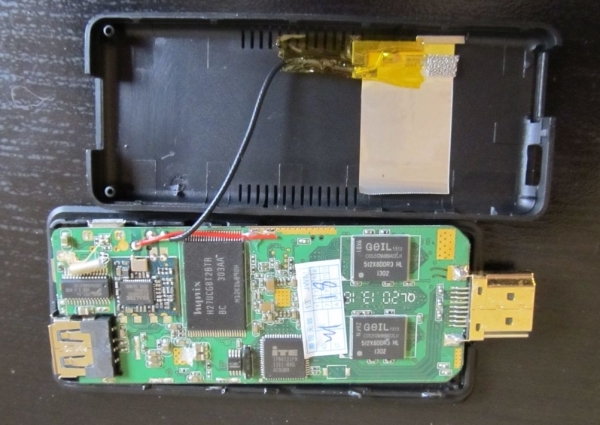
Today I finally followed Rikomagic’s advice and cracked open the case to see if moving the antenna really does help improve WiFi performance. The short answer? It does.
The first thing I did was to plug the MK802 IV into my monitor, hook up a keyboard and mouse, and install the Network Signal Info app. I did this before moving the antenna.
At first, I saw signal strength of 60 to 70 percent. Then I unplugged the WiFi range extender in my office and watched the signal strength plummet down to 36 percent.
It didn’t stay there — that’s about as high as it got, but the signal
occasionally dipped lower and from time to time the MK802 IV simply
disconnected itself from my wireless network.
I didn’t have much hope that moving around the antenna would change things. But Rikomagic had assured me it would. So I unplugged the device and pried open the case (it’s tough to do this without breaking off some of the plastic — but basically if you run a fingernail, credit card, or other thin (and preferably not sharp or metallic) item along the edge of the case you should be able to do this without causing serious damage.
This is what my device looked like with the case open.
While a 100 percent signal would be even more exciting, this is a strong enough signal to stream videos, surf the web, make video calls, or do just about anything else without fear of losing the internet connection.
Not bad, considering my WiFi router is on the first floor of the house and my office is on the third.
This solution clearly won’t work for every Android TV stick. But if you happen to have a Rikomagic MK802 IV and you have trouble holding onto an internet signal, you might want to open the case and try moving the antenna.
There’s one interesting side note to this story. Rikomagic also recently issued a software update for the MK802 IV that upgrades the device from Android 4.1 to Android 4.2.2. It’s also supposed to optimize WiFi performance and offer a few other improvements — but I find that my signal strength is actually weaker after the upgrade.
I wrote most of the above article while running Android 4.1. After updating to Android 4.2, my signal strength dropped to about 51 percent.
But one problem that plagues many of these little devices is poor WiFi reception. Some models are better than others, but I got so tired of testing Android mini-computers that didn’t work in my office that I recently invested in a WiFi range extender for the house.
Fortunately some device makers have been paying attention and adding features such as external antennae to improve performance. Sometimes there are easy ways to fix models without an external antenna though.
The folks at Rikomagic, for example, noticed that you can dramatically improve WiFi performance on the MK802 IV just by moving the antenna inside the case.
Retailer W2Comp sent me an MK802 IV demo unit a while back, but I’ve been a bit too busy to test it. Incidentally, W2Comp sells the device for $76.
Today I finally followed Rikomagic’s advice and cracked open the case to see if moving the antenna really does help improve WiFi performance. The short answer? It does.
The first thing I did was to plug the MK802 IV into my monitor, hook up a keyboard and mouse, and install the Network Signal Info app. I did this before moving the antenna.
At first, I saw signal strength of 60 to 70 percent. Then I unplugged the WiFi range extender in my office and watched the signal strength plummet down to 36 percent.
I didn’t have much hope that moving around the antenna would change things. But Rikomagic had assured me it would. So I unplugged the device and pried open the case (it’s tough to do this without breaking off some of the plastic — but basically if you run a fingernail, credit card, or other thin (and preferably not sharp or metallic) item along the edge of the case you should be able to do this without causing serious damage.
This is what my device looked like with the case open.
While a 100 percent signal would be even more exciting, this is a strong enough signal to stream videos, surf the web, make video calls, or do just about anything else without fear of losing the internet connection.
Not bad, considering my WiFi router is on the first floor of the house and my office is on the third.
This solution clearly won’t work for every Android TV stick. But if you happen to have a Rikomagic MK802 IV and you have trouble holding onto an internet signal, you might want to open the case and try moving the antenna.
There’s one interesting side note to this story. Rikomagic also recently issued a software update for the MK802 IV that upgrades the device from Android 4.1 to Android 4.2.2. It’s also supposed to optimize WiFi performance and offer a few other improvements — but I find that my signal strength is actually weaker after the upgrade.
I wrote most of the above article while running Android 4.1. After updating to Android 4.2, my signal strength dropped to about 51 percent.
Ετικέτες
android mini pc,
rikomagic,
rockchip,
tutorials
Tuesday, April 29, 2014
How to root Amlogic S802 TV Boxes
This guide shows you how to easily root your Amlogic S802 device. You Just need a PC with Internet connection, the USB cable, and the TV Box.
- Install on your PC the Kingo Android Root program
- Your TV Box must be turned on and the USB Debug option must enabled. It can be found in Settings / Advanced / Developer Options.
- Execute Kingo ROOT Android and connect your PC to the TV-Box with a USB cable via the OTG port. The system will recognize the TV Box and if any driver is missing it will be automatically downloaded. When the Box is correctly detected just click the Root button.
Monday, April 28, 2014
Firmware Upgrade Tutorial for TV Boxes with Amlogic S802
This is a short guide to upgrade your Amlogic S802 TV-Box. There are two methods to update it. If there is only one file use method 1 and if there are multiple files use Method 2.
1 - From a PC with .img file
- Download and install the tool on your PC from HERE the appropriate drivers will be installed too.
- Restart your PC
- Run the USB_Burning_Tool that you installed on your PC and from the File / Import image img tab select the file you downloaded to install the firmware..
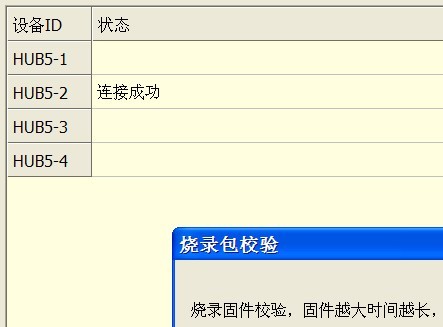
- Now turn your TV-Box off and connect it to your PC by the USB-OTG port with the MicroUSB cable. Now press the recovery button that is located beside the A/V connector and simultaneously turn the TV-Box on. If all went according to plan the flash tool will recognize your TV-Box as pictured.
Sunday, April 27, 2014
How to fix Video Lag for the Bluetimes BT919 Android TV Stick
Saturday, April 26, 2014
MINIX V1 Launcher Final available for download
MINIX has launched the final version of their launcher that still has to polish some points but it seems more stable. There are also other themesin the Minix forum with different colors and icons. A simple launcher and very user friendly. You can download it from HERE,
Changes:
Changes:
- Added extra row so that users can put their apps
- Some minor adjustments to improve navigation
Gotham XBMC 13.0 Beta 4 now available for download
XBMC Gotham 13 Beta 4 is now available for download, this new version brings a number of general improvements in compatibility with various systems.
The ARM Android version can be downloaded from HERE
The Android x86 version can be downloaded from HERE
More information in the official announcement. Specific changes XBMC Gotham Beta 4:
The ARM Android version can be downloaded from HERE
The Android x86 version can be downloaded from HERE
More information in the official announcement. Specific changes XBMC Gotham Beta 4:
- Improved playback of various formats
- Improved support Fire TV
Thursday, April 24, 2014
Official Firmware for Rikomagic RKM MK802-IV TV-Stick (3.24.2014)
This is the latest firmware dated at 24/03/2014 for the Rikomagic RKM MK802-IV (AP6210) android TV Stick, which includes several interesting improvements.
You can download it from HERE or HERE for the model with wifi AP6210 chip serial number from 201307****
List of Changes:
You can download it from HERE or HERE for the model with wifi AP6210 chip serial number from 201307****
List of Changes:
- Optimized wifi performance.
- Fixed some problems restarts TV-Stick.
- Optimized wifi function display (Miracast)
Monday, April 21, 2014
How to run Windows XP on Android
Getting Started:
Congratulations.
So you want to run Windows XP on your Android device. The process is
pretty easy and only takes around 30 minutes, but the time may vary
depending on your computer speed. To get started, you will need to have
a .iso format of Windows XP. If you have your windows' disc, then you
could use programs such as ISOBurner to make an ISO from it. After you have that all figured out, continue to download the rest of the items below.
Subscribe to:
Posts (Atom)